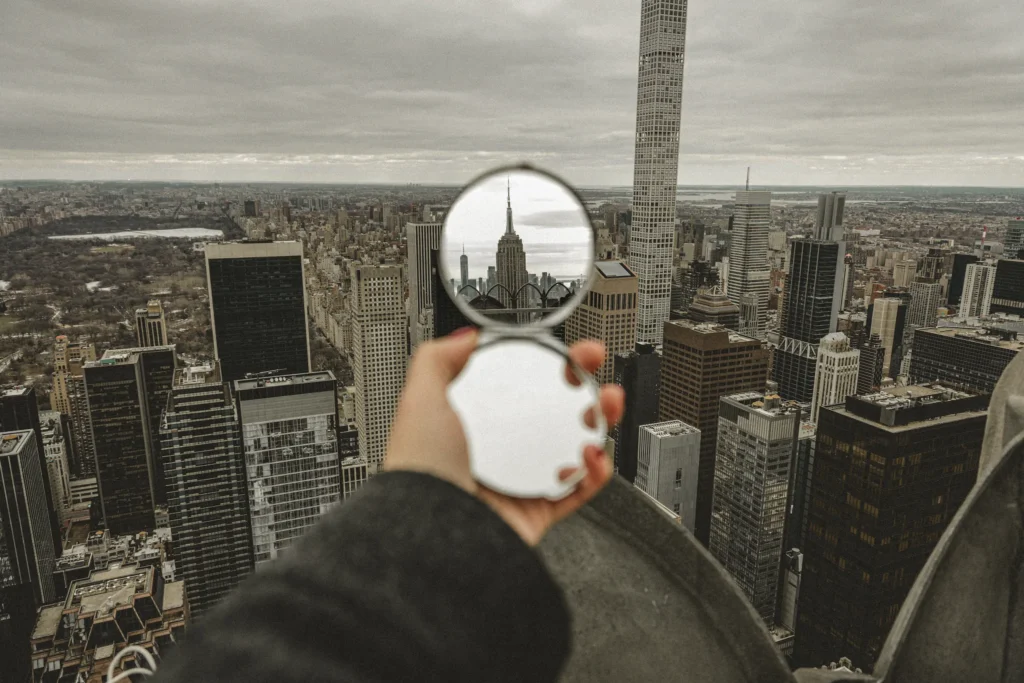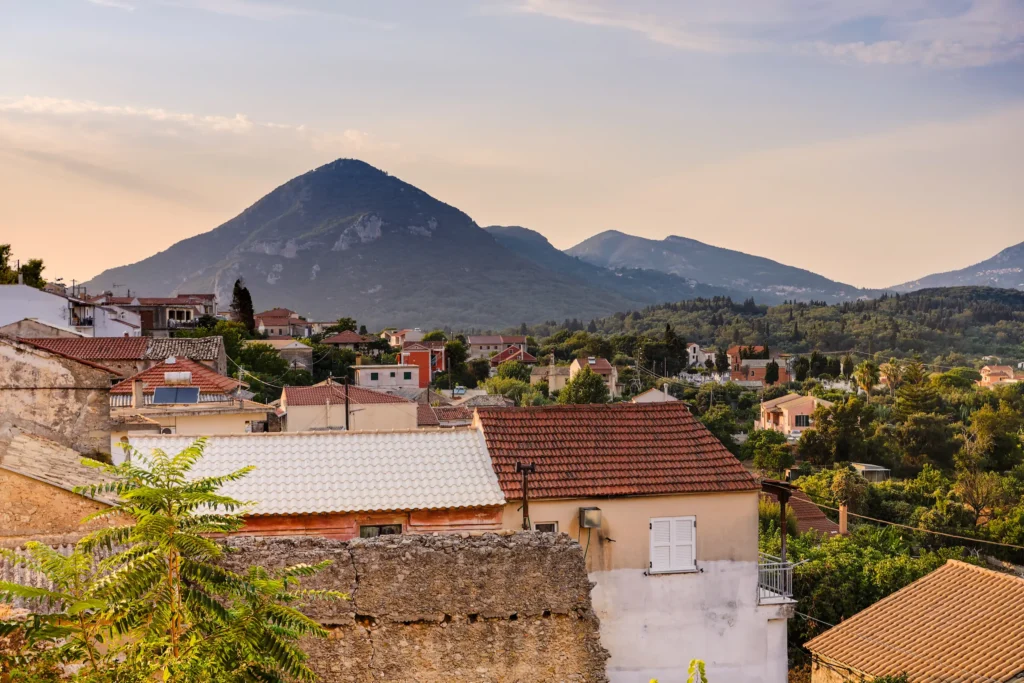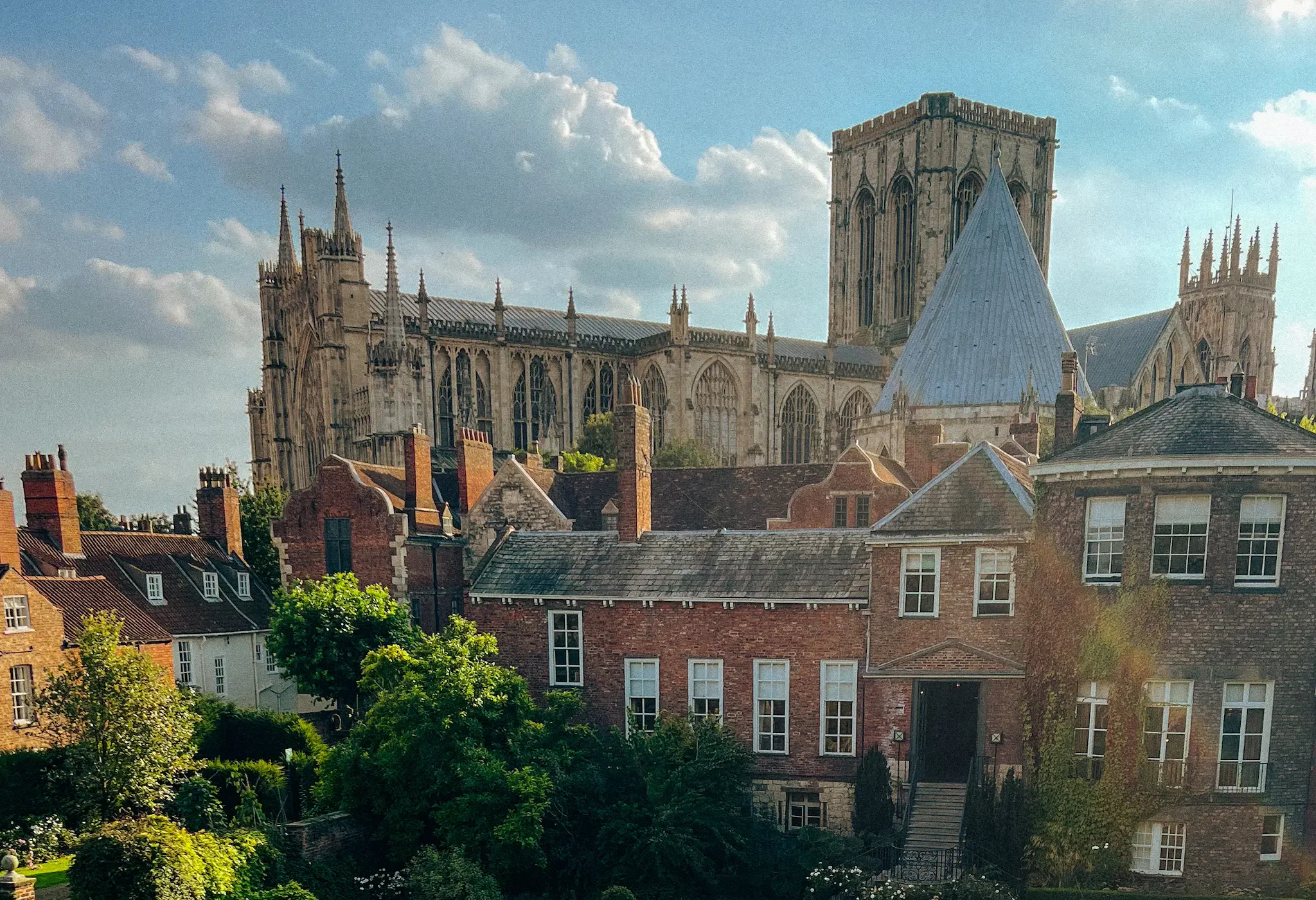
The best editing workflow is the one you’ll actually use on the road. A full Lightroom desktop session is ideal — but you’re not always at a desk. You’re in a hostel common room at 10pm, you want to post something tomorrow morning, and you have 15 minutes. This is that workflow: fast, consistent, and good enough to publish without embarrassment.
This guide uses Lightroom Mobile, which is free for the core features and syncs with desktop if you have a Creative Cloud subscription. VSCO and Snapseed work too, but Lightroom’s control and masking capabilities are hard to beat at any price point on mobile.
The 10-Minute Workflow
Work through these adjustments in order. Each step builds on the last, and the sequence prevents you from chasing your tail by over-adjusting one thing and compensating with another.
Step 1: Exposure and White Balance (2 minutes)
Before anything else, fix the fundamentals. Drag Exposure until the image looks correctly lit. Then check White Balance — if your shot looks too orange (warm light, indoor) or too blue (shade, overcast), correct it with the Temperature slider. Don’t over-correct; a slightly warm travel photo looks more natural than a clinically neutral one.
Step 2: Highlights, Shadows, Whites, Blacks (2 minutes)
This is where most of the heavy lifting happens. The standard travel photo adjustment:
- Drag Highlights left (–30 to –60) to recover blown skies and bright areas
- Drag Shadows right (+20 to +40) to open up dark foreground areas
- Drag Whites slightly right for contrast and brightness in the brighter tones
- Drag Blacks slightly left to deepen the darkest areas — this adds richness without muddying the midtones
The “S” curve: In the Tone Curve panel, creating a gentle S-shape (lift the midtones slightly, deepen the shadows slightly) is the fastest way to add contrast that looks natural rather than HDR-processed. It takes 20 seconds and makes a significant difference.
Step 3: Color — HSL Panel (3 minutes)
This is where travel photos become distinctly yours rather than technically correct. The adjustments that tend to work for travel:
- Blues: Increase Saturation and Luminance on blues to make sky and water pop without looking cartoon-like
- Greens: Shift Hue slightly toward yellow for warmer, more natural-looking vegetation; reduce Saturation if greens look nuclear
- Oranges: Skin tones live in the orange range — be careful here; a small shift in Hue or desaturation of orange has a large effect on people in the frame
Step 4: Sharpening and Noise Reduction (1 minute)
Detail panel: add a moderate amount of sharpening (30–50) with a Masking value high enough that you’re sharpening edges and texture rather than flat areas. If you shot in low light, add Noise Reduction — the Lightroom Mobile AI noise reduction released in 2024 is genuinely excellent and worth using on anything over ISO 3200.
Step 5: Crop and Straighten (1 minute)
The last step. Straighten horizons (the auto-level button gets this right 80% of the time). Crop to strengthen the composition if the original framing is weak — tighten to a rule-of-thirds placement of the main subject, or square for a specific feed aesthetic.
Apps Worth Having
- Lightroom Mobile: Free tier covers everything in this guide; worth the $10/month Creative Cloud Photography plan if you shoot RAW
- VSCO: Better preset library than Lightroom for film looks; weaker technical controls — use alongside Lightroom, not instead of it
- Snapseed: Free, excellent selective masking tools, good for portraits and targeted adjustments
- Darkroom: The best native iOS photo editor — fast, good curves, works directly with the Apple Photos library
- Photomator: Apple platform only, uses ML for upscaling and noise reduction; surprisingly capable for the price